

The worst thing that can happen when you make product images is this: the background looks great, but the cup has changed. The handle is a bit thicker, a few ribs have vanished, and once it is on the product page, the buyer who receives the real item and compares the two becomes an after-sales case.
For e-commerce, that is the most useful claim in the GPT Image 2.6 pitch. OpenAI says the Sunburst model brings "higher-quality generation and greater consistency across edits." How much better that is, the company has not quantified, so the only way to find out is to try it on a real object.
One fictional product, two scene swaps
We invented a cream-white matte ceramic pour-over dripper with fine vertical ribbing on the outer wall and a small handle, and first produced a white-background studio shot as the reference.
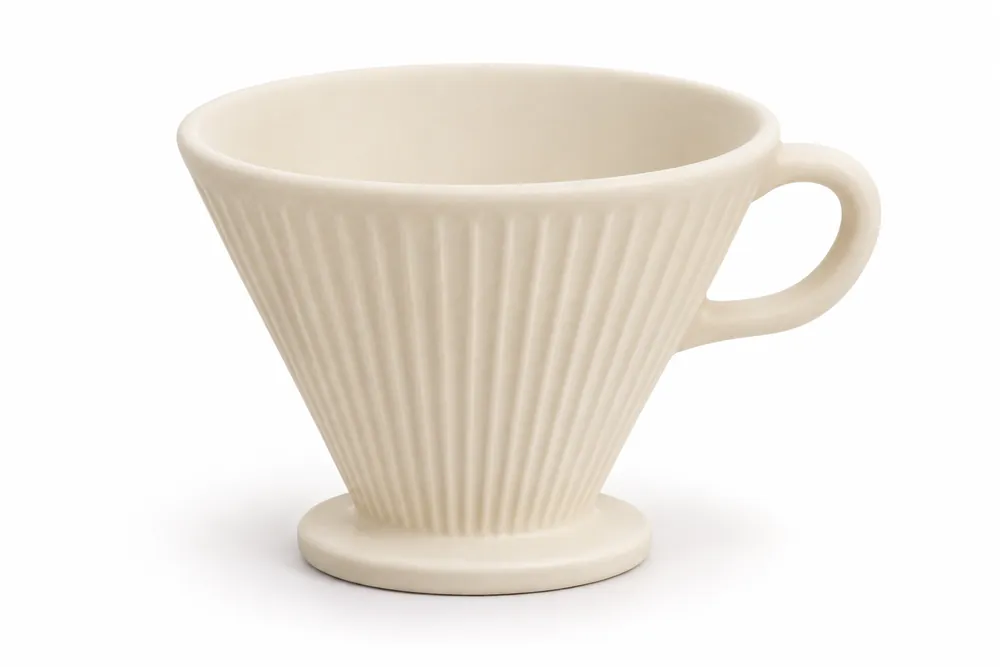
We then edited scenes from that image one after another. The prompt structure is simple: first say what to change, then say what must not move.
The first scene is a walnut tabletop with early-morning window light, which is the lead image of this article; the second is grey stone with plant shadows. In both cases only the environment and the lighting were touched.
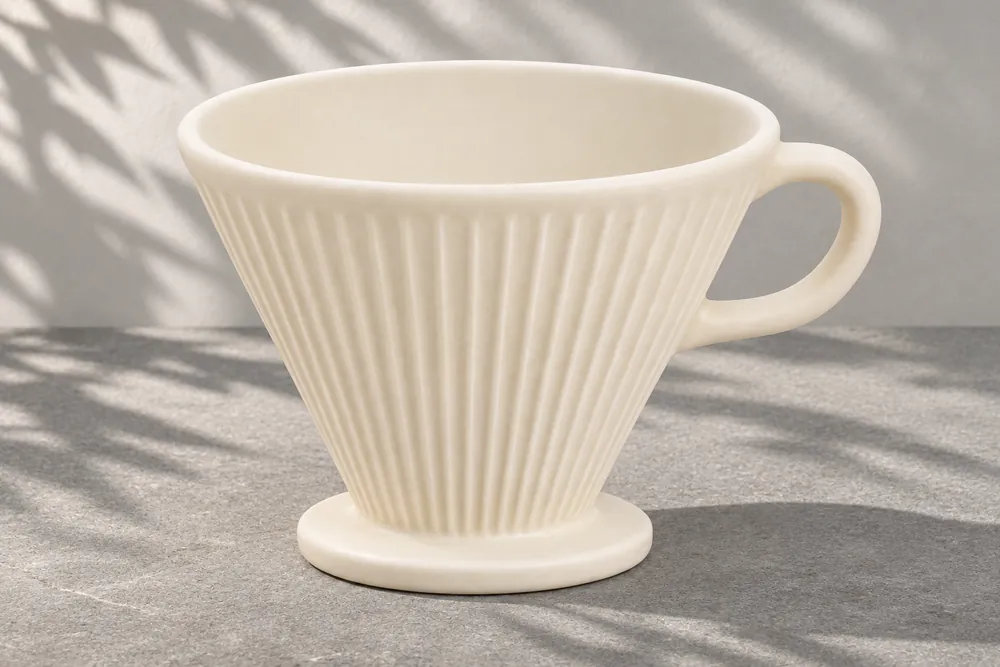
Side by side, the three images match well on cup shape, rib direction and handle curve, and the highlights and shadows in the walnut-table image follow the window light. The glaze in the walnut version looks warmer than in the white-background shot. That comes from the lighting, and you need to decide whether it is acceptable before listing the product.
These images were generated in Codex with an explicit request to use Images 2.6 capabilities. The tool receipt does not show a model version, so we cannot confirm they actually came from 2.6; treat them only as a reference for a comparable workflow.
Chinese poster passes, the GIF almost does
The second test was Chinese text. We asked for a vertical poster with just two lines of copy.
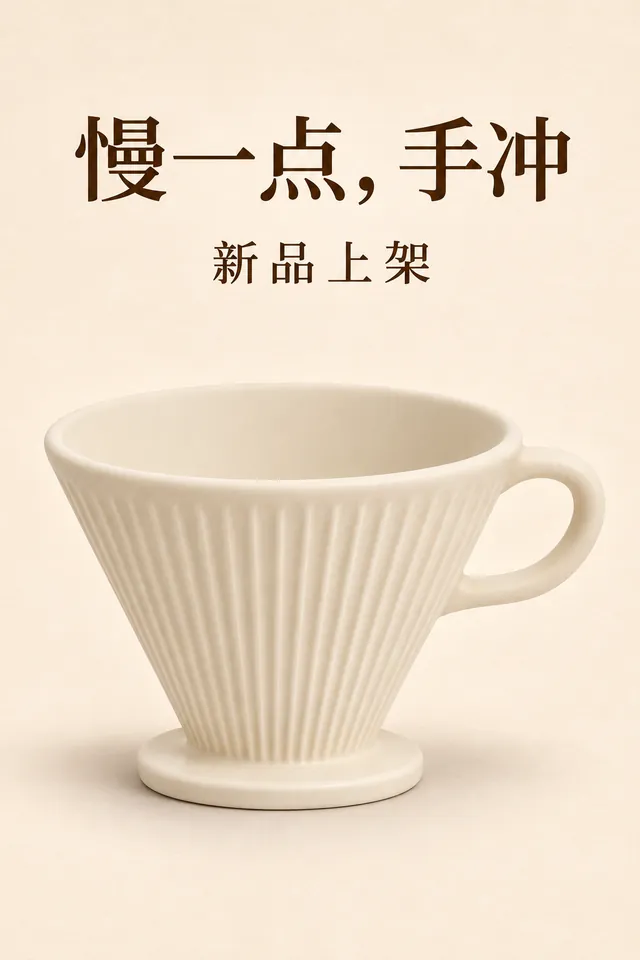
"慢一点,手冲" ("Slow down, pour-over") and "新品上架" ("New arrival") were both written correctly, with no typos and no extra text. With few characters at a large size, you can already be fairly relaxed; we did not test dense promotional copy. The official documentation notes that dense text and complex layouts call for a higher complexity setting, at the cost of speed and possibly unwanted changes.
The third test was a GIF: the dripper rotating briefly on a turntable.
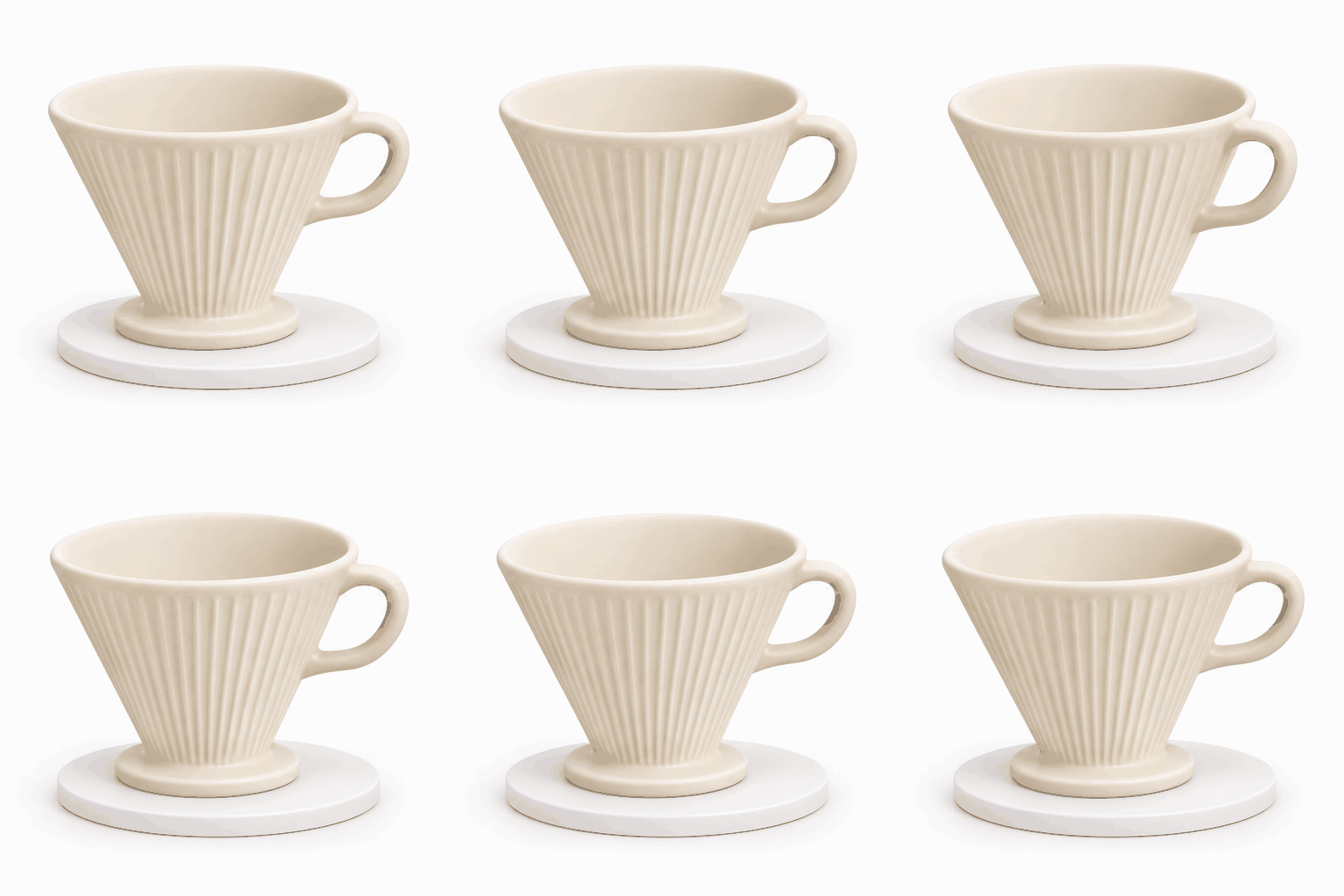
This one used a six-frame sprite sheet that was then assembled. Played frame by frame at slow speed, the handle shape and the ribbing deform slightly. That is unacceptable on a product-page hero image, and a true 360-degree view still needs real photography. As a small ambient animation for social media or a campaign page, it is fine.
What you can hand to it
Based on this result, this is how we would split the work:
- Fine to hand over: scene images, seasonal background swaps, colour-variant previews of the same item, social media visuals, and multi-version tests of ad creatives.
- Needs a human watching: posters with text and A+ detail-page layouts, where every word and number has to be checked one by one.
- Keep shooting for real: hero images, size diagrams, material close-ups, and any image that affects how a buyer judges the physical product.
The bottom line for that last category is clear. AI images can show usage scenes, but they must not give buyers a wrong expectation of the product itself.
Where to use it and how to start
If your team already uses ChatGPT, just start there. Saving reference images is a new capability this time; the official examples are people, pets and characters, and whether products can be saved and reused the same way is something you can test yourself.
If you prefer a dedicated workspace for product images, you can try GPT Image 2.6 on PixPix. Its page breaks the process into three steps, which line up closely with the approach we arrived at above:
- Set the direction. Upload a reference image or describe a new scene.
- Write the brief. Spell out the subject, composition, lighting and the details to keep. The example on the page puts a lamp on a walnut side table and asks to preserve its shape and sage-green surface.
- Check, then revise. Make one clear change at a time.
The third step sounds like filler but saves real money. Ask for five changes at once and, when something goes wrong, you cannot tell which line led it astray.
On model choice, PixPix says Flare suits fast iteration, while Sunburst suits fine work and consistency across multiple edits; the workspace defaults to Sunburst. Our suggestion is to use Flare for several drafts while finding a direction, then switch to Sunburst for the final output. The two have the same API unit price; how many credits are deducted depends on what the workspace shows, and the model page lists no prices, so it is worth confirming before you subscribe.
The site also has e-commerce tools such as product image sets, A+ detail pages and model try-on, worth a look if you need full sets of images. The workspace requires a login first. We did not test these features this time, so results depend on what you get with your own products.
Pick your best-selling product, take one real photo and swap it into two scenes, then put the results next to the original. You will know quickly whether this route suits your category.
Sources: CocoLoop, OpenAI Developer Community announcement, OpenAI image generation documentation, PixPix GPT Image 2.6 page; the product is fictional, the images come from our own testing, and the model version could not be confirmed.