

On November 4, OpenAI launched ChatGPT Images 2.6, and its most talked-about new ability is GIF: give it a prompt or a photo and it generates a looping animation, which you can then speed up, slow down or edit frame by frame. The prompt in OpenAI's own demo is almost casually simple: "can you make a gif of a cat dancing?"
We tried to make a set of animations the same way using our local Codex, and the very first step did not go as expected.
Ask for a GIF, get a PNG
OpenAI says Images 2.6 is available in ChatGPT and Codex on all plans. When we asked Codex directly for a GIF of a paper boat, about 21 seconds later we received a single-frame 1536×1024 PNG.
The image tool built into Codex takes only four inputs: a prompt, a reference image path, how many recent images to carry along, and whether the background should be transparent. Model name, output format and frame count are not among them, and the response does not show a model version either.
So the provenance of these images needs to be stated up front: they were all generated in Codex with an explicit request to use Images 2.6 capabilities, but we cannot confirm they actually came from 2.6. Not getting a native GIF this time does not mean 2.6 lacks the feature, since the ChatGPT web app and the API use different entry points. Other reports also say GIF is still rolling out gradually, so it is normal if your account does not show it yet.
A detour: draw a six-frame sheet first
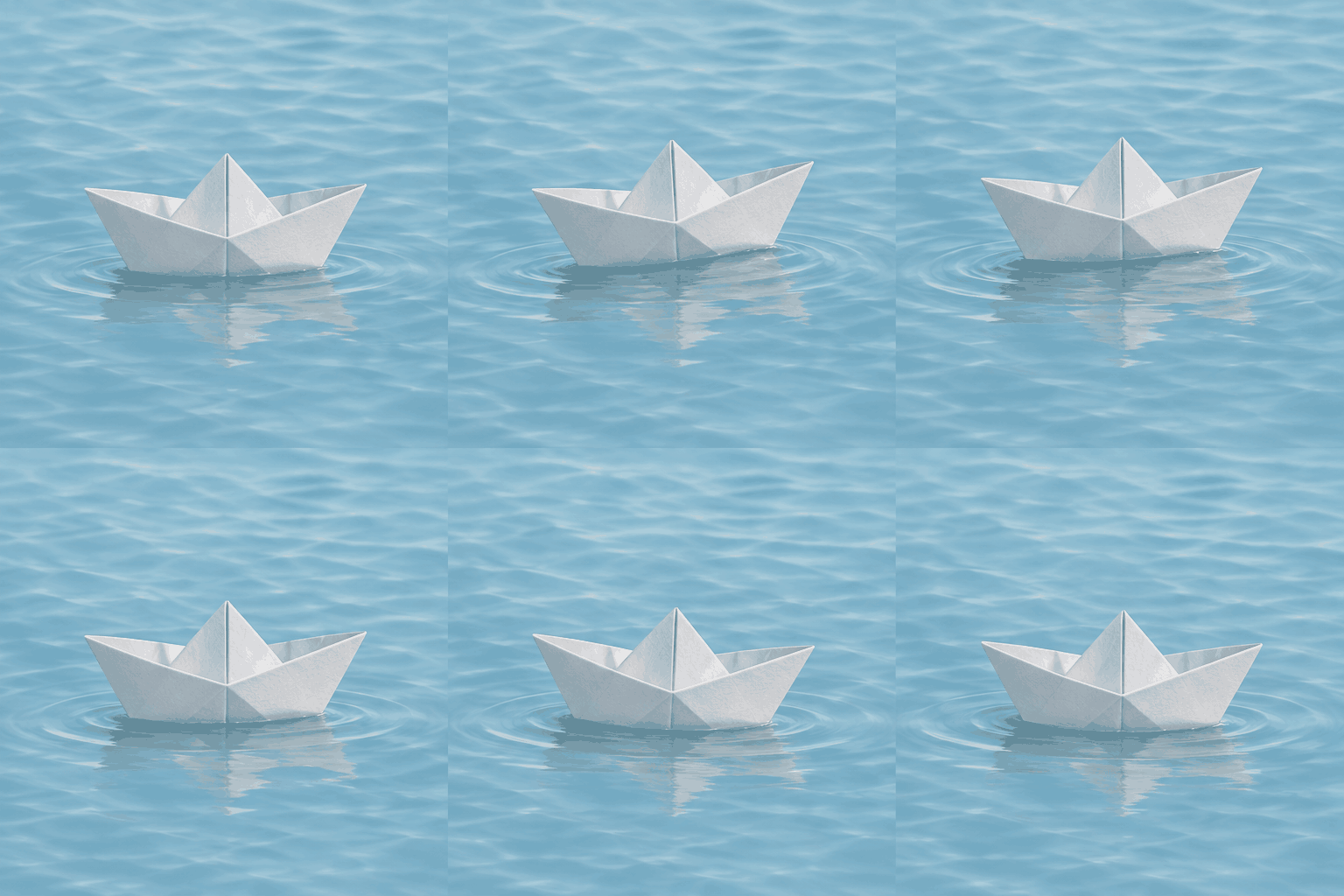
OpenAI's official examples actually hint at an approach: draw the motion as a single sprite sheet, then stitch it into an animation. This works anywhere that can generate images. The prompt structure looks like this:
A sprite sheet with 3 columns × 2 rows, 6 frames in total, all frames the same size,
read left to right, top to bottom.
Content: a white origami boat bobbing gently on light blue water, with the ripples changing as it moves.
Keep the camera, the shape of the boat and the background identical in every frame.
Frame 6 should loop naturally back into frame 1.
No text, numbers or logos.
Once you have the image, slice it up and a few lines of Python will assemble it:
from PIL import Image

sheet = Image.open("boat-sheet.png").convert("RGB")
w, h = sheet.width // 3, sheet.height // 2
frames = [sheet.crop((x * w, y * h, (x + 1) * w, (y + 1) * h))
          for y in range(2) for x in range(3)]
frames[0].save("boat.gif", save_all=True, append_images=frames[1:],
               duration=140, loop=0)
That is how the paper boat was made: 6 frames, 140 milliseconds per frame, 512×512, and a file under 500 KB.
What we noticed after making four animations
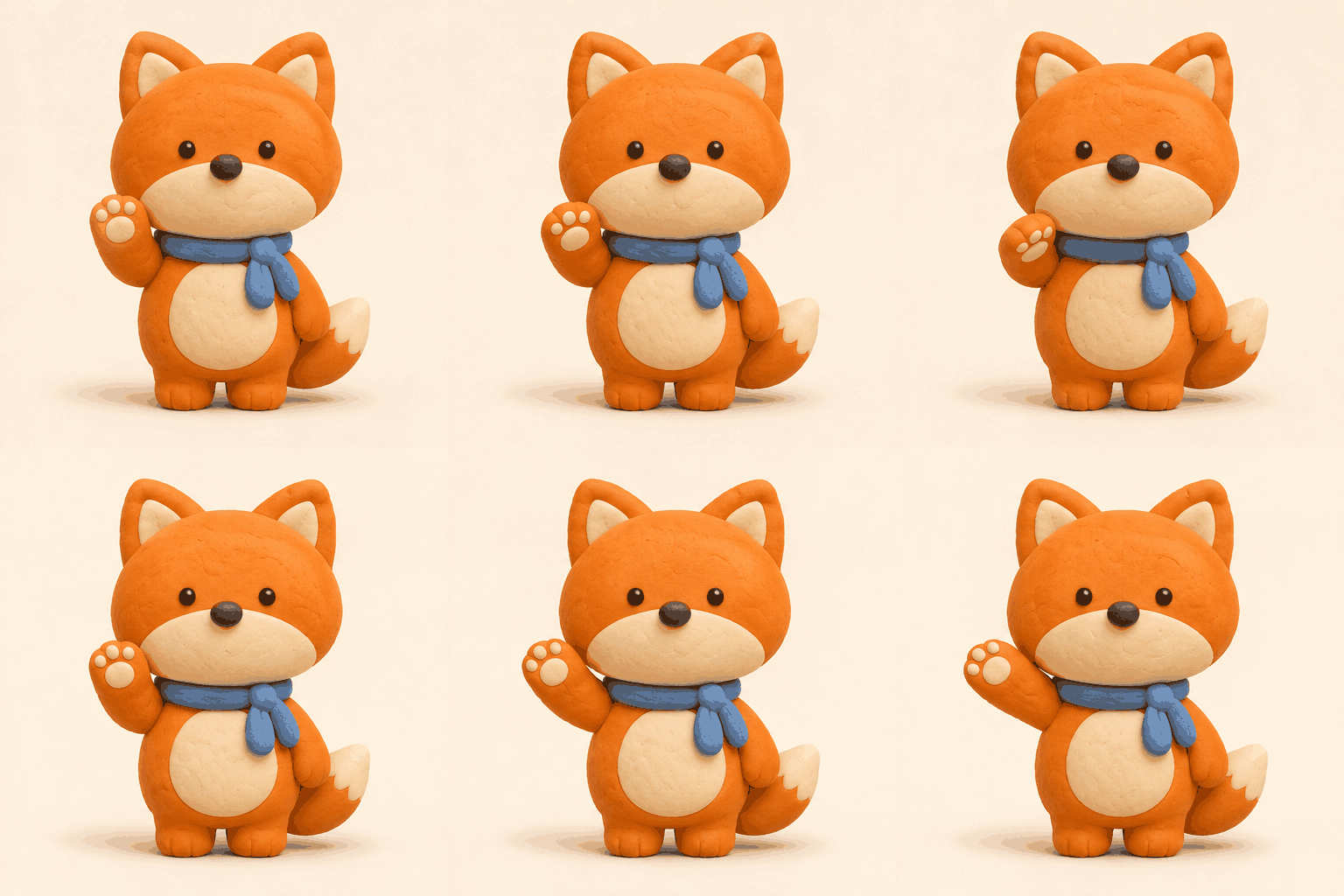
Characters held up better than expected. On this original little fox, the scarf, belly and ears matched across all six frames; only the clay texture and the outlines wobbled slightly.
The busier the background, the sooner it gives itself away. The water texture in the paper boat animation differs a little in every frame, which shows up when you slow it down. For a clean loop, pick a solid color or large flat areas for the background.
Path-based motion is the hardest. The first version of the paper plane circling through the air had a wobbly route and had to be redrawn before it was usable, and the final version's path still drifts slightly. Small in-place motions such as waving, bobbing and nodding succeed far more often.
Six frames are enough, but don't get greedy. A GIF should express just one thing. The safe approach is to make one first, generate several versions of the same character, check faces, colors and logos for distortion, and only then decide whether to go to batch production.
The API parameters are more explicit
On the developer side the parameters are proper ones: set output_format to gif, along with frame_count and frame_duration_ms; the defaults are 9 frames at 200 milliseconds each. The documentation disagrees on the frame limit: the guide says 2 to 64, while the API reference says 2 to 16, so to be safe stay within 16 for now.
Lock the still image before you animate
Rework usually happens before anything moves. If the character's face shape, color palette and the way the scarf is tied are not settled, a single off frame in the six-frame sheet means the whole sheet has to be redone.
So the easier order is to produce one satisfying still character sheet first, and only then make it move. That step doesn't have to happen inside ChatGPT. The GPT Image 2.6 page on PixPix opens straight into this kind of workflow: you can start from a prompt or a reference image, change one thing at a time while specifying which details to keep, and the default choice is the finer-detail Sunburst. The sprite sheet prompt above is itself a request for a still image, so in theory it could be tried there too, with the slicing and assembly still done locally. We have not tested this route, and PixPix's page does not mention a GIF feature, so treat it as an idea only.
A few things to watch before publishing: some platforms handle GIF uploads poorly and may need a conversion to video; text and logos inside the image should be checked frame by frame; and if you animate someone else's photo, get their consent first.
Sources: OpenAI Developer Community announcement, CocoLoop, OpenAI image generation documentation, The Decoder, AI×SNS Lab; timing and file figures come from our own testing, and the model version could not be confirmed.